
Add Shapes And Visual Styles To Text
Creating Wordart
PowerPoint allows you to add effects to the text inside of a text box, which is known as WordArt. With WordArt, you can transform the text to give it a wavy, slanted, or inflated look.
A WordArt Style will automatically apply several effects to your text at once. You can then refine the look of your text by adding or modifying text effects.
Select a text box, or select some text inside of the text box. The Format tab will appear.
- Click theFormat
- In the WordArt Stylesgroup, click the more drop-down arrow to view all of the available styles.
- Select the desired style pre-set to apply the style to your text.
- You can also add text fill and text outline.
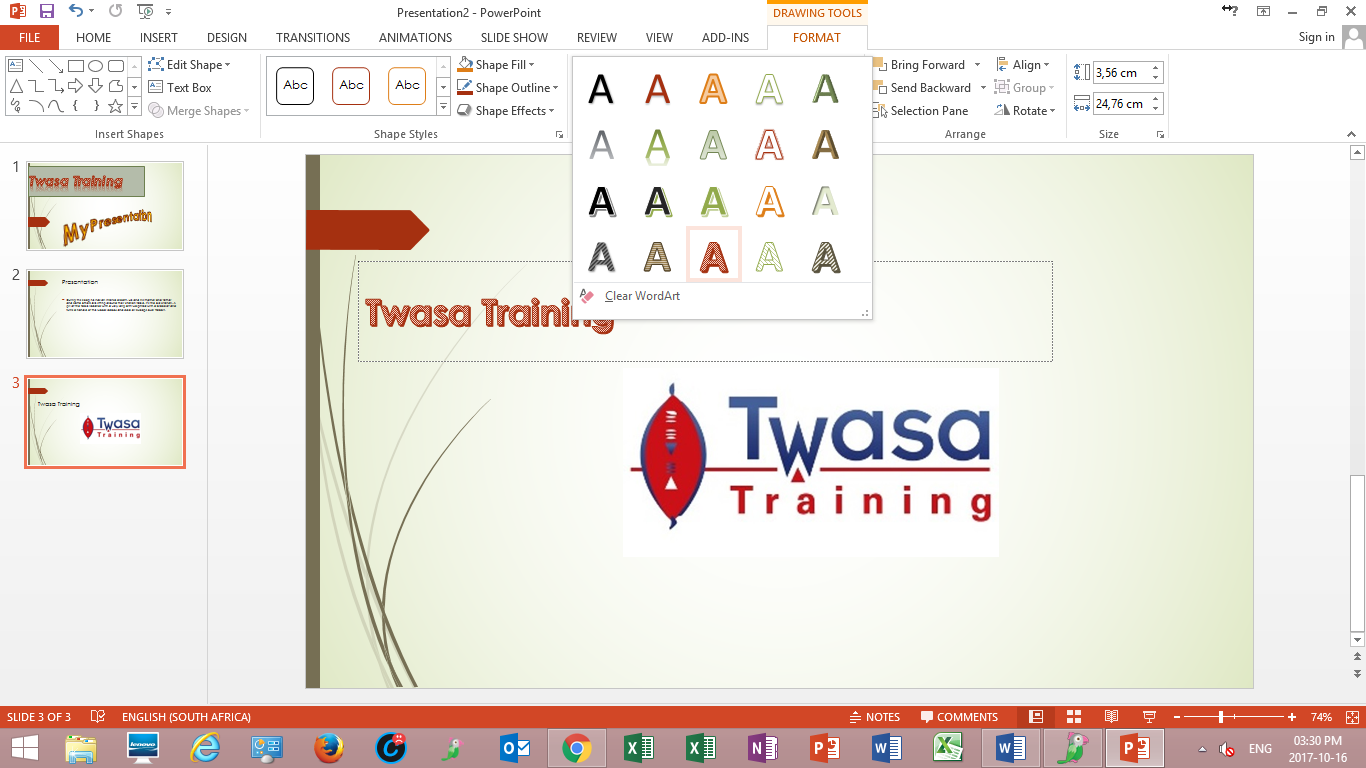
- After you have applied a WordArt Style, you can still modify thefont or font colour from the Home tab if desired.
Text Effect
- Click theText Effects command in the WordArt Styles A drop-down menu will appear, showing the different effect categories.
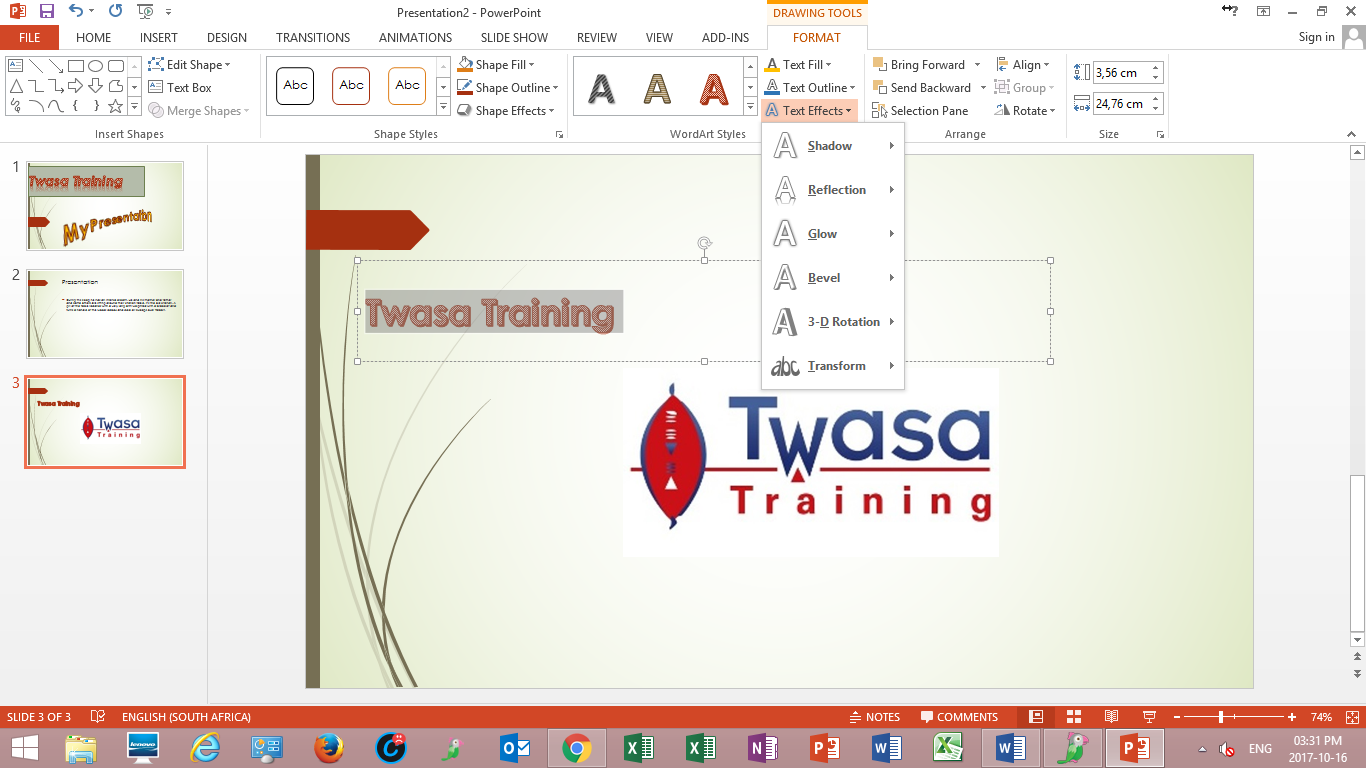
- Select the option to transform text.
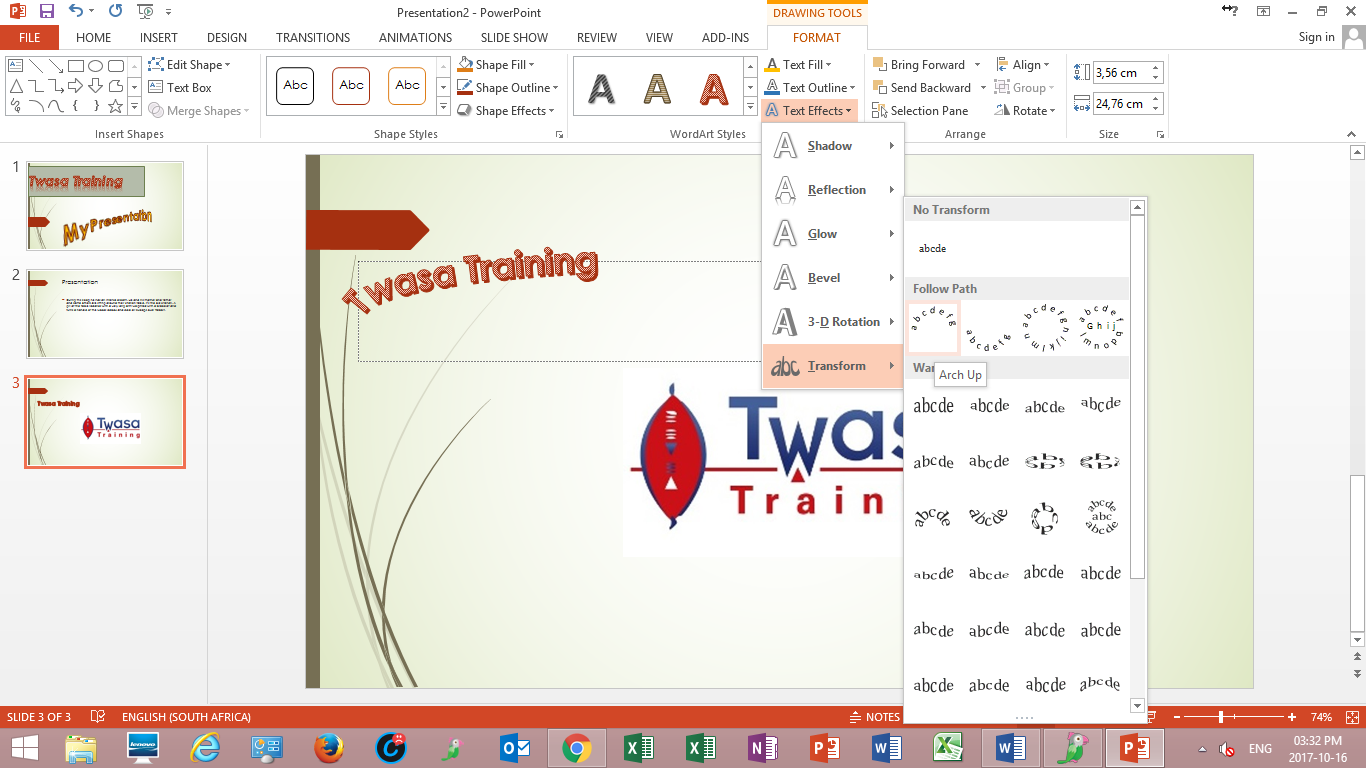
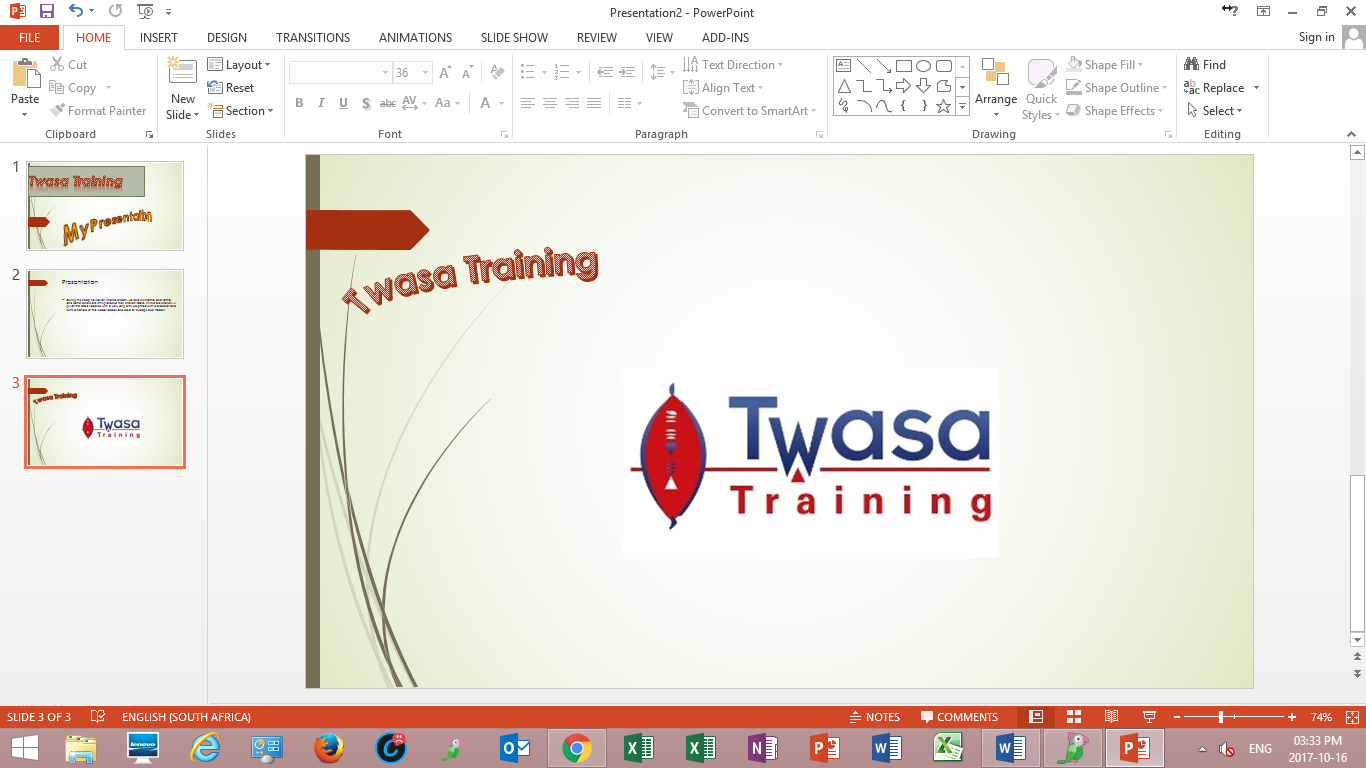
- Select the transformation effect you want to apply
Add shape
To insert a shape:
- Select the Insert tab.
- Click the Shapes command.
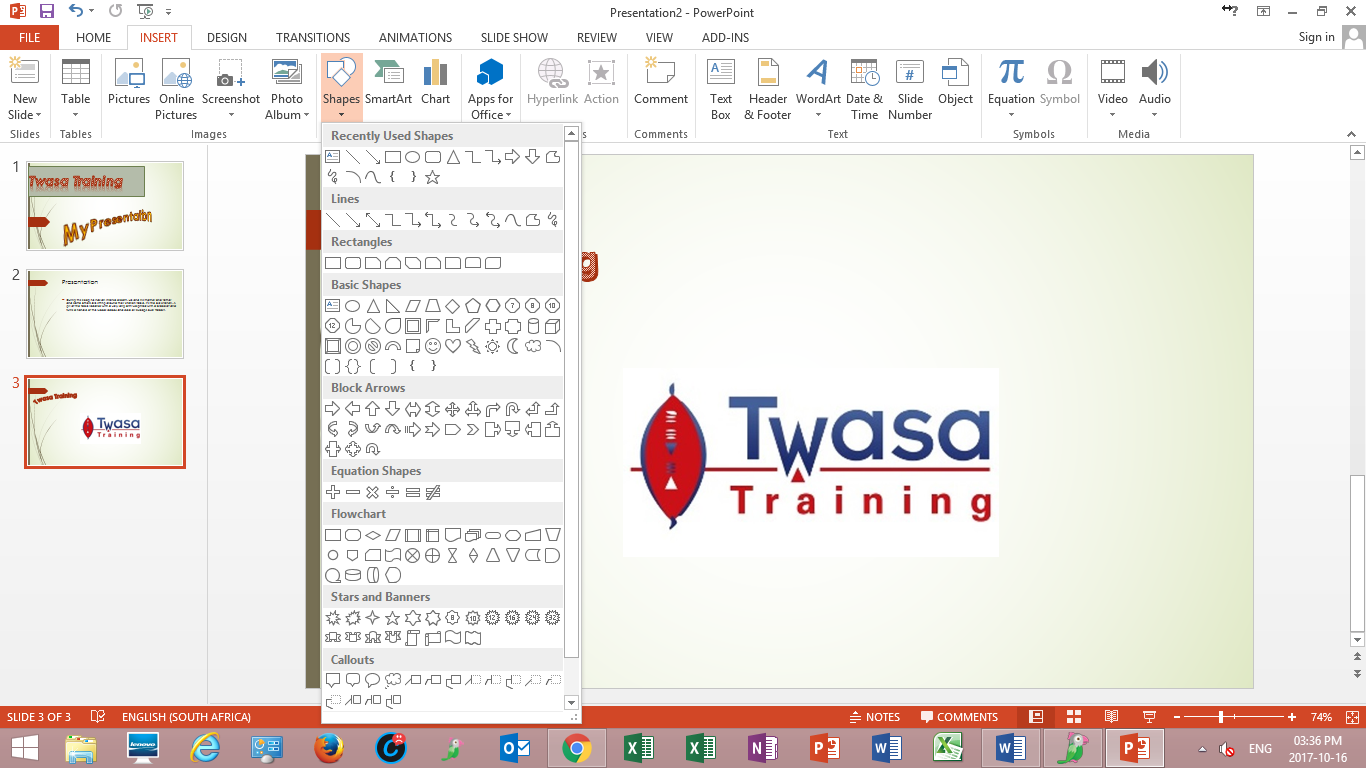
- Select a shape from the drop-down menu.
- Click and drag the mouse until the shape is the desired size.
Release the mouse button.
To resize a shape or text box:
- Click the shape to select it.
- Click and drag one of the sizing handles on the corners and sides of the text box until it is the desired size.
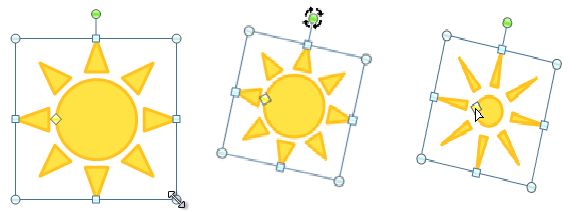
To rotate the shape, drag the green handle.
Some shapes also have one or more yellow handles that can be used to modify the shape. For example, with star shapes you can adjust the length of the points.
If you drag the sizing handles on any of the four corners, you will be able to change the height and width at the same time. The sizing handles on the top or bottom of the shape will only allow you to resize vertically, while the handles on the left and right sides will resize the shape horizontally.


You must be logged in to post a comment.